Sunday, September 21, 2014

Useful Links

http://aaclage.blogspot.ca/2013/09/example-custom-ui-metro-style-tiles.html
http://karinebosch.wordpress.com/sharepoint-controls/peopleeditor-control/
http://www.sharepointanalysthq.com/2014/05/custom-webpart-editor/
http://fahadzia.com/blog/2009/08/peopleeditorpeoplepicker-control-as-web-part-property/

Thursday, September 18, 2014

SharePoint 2013 Modal Dialog with parent page refresh


<script type="text/javascript">

function ShowModal() {

    ExecuteOrDelayUntilScriptLoaded(function () {

        var options = {

            url: 'http://sharepointsite.com/sites/devsite/Lists/Project%20Tasks/DispForm.aspx?ID=2&Source=http%3A%2F%2Frmitscvpspqa02%3A1000%2Fsites%2Fdevsite%2FLists%2FProject%2520Tasks%2FAllItems%2Easpx&ContentTypeId=0x010800EFF7689E39CAEB4C9BF59AEB73ABEFA9',

            tite: 'Add Vendor',

            width: 800,

            height: 475,

            allowMaximize: true,

            showClose: true,

            dialogReturnValueCallback: scallback

        };

        SP.UI.ModalDialog.showModalDialog(options);

    }, 'sp.js');

 }


 function scallback(dialogResult, returnValue) {

      alert(dialogResult);

      SP.UI.ModalDialog.RefreshPage(SP.UI.DialogResult.OK);


      if (dialogResult == SP.UI.DialogResult.OK) {

           alert('Ok');

           SP.UI.ModalDialog.RefreshPage(SP.UI.DialogResult.OK);

           }

      }


      </script>

<input onclick="javascript:ShowModal();" type="button" value="Model Popup"/>

Friday, September 5, 2014

Office 365 Development Setup & SharePoint PnP


Step 1 : SharePoint Online: Sign up for a free Office 365 Developer Site from your MSDN subscription


Step 2 : Login to : https://portal.office.com and use your credentials


Step 3 : The home page will be shown like the below image


4      


Step 4 : Click the SharePoint and the SharePoint Administrator page will appear as shown below. Note that the admin website link is required for some visual studio app development.

Step 5 : Create a Developer Site collection and it is highlighted as shown below

      Step 6 : Now go to https://github.com/OfficeDev/PnP and download the sample ZIP file. It contains core components and samples and need VS 2013 (I tried using VS2013)


      Step 7 : Open a sample project from the downloaded zip file


Step 8 : Now build and run the project or press F5.


Step 9 : That is it. :) ... Make sure you understand the code in the samples which will make your work easy and reduce your code dramatically. The good thing is its all CSOM and hosted in S2S (Provider hosted app model).

Reference : 


Wednesday, September 3, 2014

SharePoint 2013 Designer Workflow - Expense claims approval process part 2 of 3


List of Article in Series

2. Build Workflow using SharePoint Designer (part 2/3)
3. Deployment and Testing (part 3/3) 

Build Workflow using SharePoint Designer
In my previous article I have explained the expense claims workflow logic and provided a Visio diagram. Make sure to read the first article before proceeding further.

Used SharePoint Designer to develop the workflow and no code. I used some basic activities which are available in SharePoint 2013 and built a complex ( J ) approval process.

The below are the Text-based and visual workflow designer code.

Text-based


Visual Designer


Hope you enjoyed building this workflow and we will meet in the next article on deployment and testing the workflow.

SharePoint 2013 .Wsp vs .App Scenario

Always try to use Apps whenever it is possible. Because 

1. Sandbox solution is supported but it is deprecated.
2. Farm solution requires downtime, cost and monitoring
3. Choose the solution and Apps model based on the scenario and the below screen shot will explain the scenario and the recommended model


Wednesday, August 6, 2014

IIS Websites Maintenance PowerShell script

File Name : IISMaintenance.ps1
This is the main script which need to edit to add the app pools and web site names to do a complete reboot of IIS apppools and websites in a proper order.

$appPoolNames = @(
    "DefaultAppPool";
    "www.wfactory.ca";
)

$webSiteNames = @(
    "Tsc";
    "TscM";
)

#Get-Location -This is automatic variable
#$scriptPath = $PSScriptRoot

$scriptPath = split-path -parent $MyInvocation.MyCommand.Definition

CD $scriptPath

#Stop AppPools
foreach($appPool in $appPoolNames)
{
    Write-Host "Attempting to stop apppool :" $appPool
    ./AppPoolStartStop.ps1 -appPoolName $appPool -stop:$true
    Write-Host "Stopped apppool :" $appPool -foregroundcolor "green"
}

#Stop Websites
foreach($website in $webSiteNames)
{
    Write-Host "Attempting to stop website :" $website
    ./WebSiteStartStop.ps1 -websiteName $website -stop:$true
    Write-Host "Stopped website :" $website -foregroundcolor "green"
}

Start-Sleep -s 10

#Restart IIS
iisreset

#Start AppPools
foreach($appPool in $appPoolNames)
{
    Write-Host "Attempting to start apppool :" $appPool
    ./AppPoolStartStop.ps1 -appPoolName $appPool -stop:$false
    Write-Host "Started apppool :" $appPool -foregroundcolor "green"
}

#Start Websites
foreach($website in $webSiteNames)
{
    Write-Host "Attempting to start website :" $website
    ./WebSiteStartStop.ps1 -websiteName $website -stop:$false
    Write-Host "Started website :" $website -foregroundcolor "green"
}

Start-Sleep -s 10

File Name : AppPoolStartStop.ps1
The script accepts app pool name and a switch (Boolean) as parameters to start or stop a App Pool in IIS

param(
[string]$appPoolName,
[switch]$stop
)

$appPool = get-wmiobject -namespace "root\MicrosoftIISv2" `
           -class "IIsApplicationPool" `
           | where-object {$_.Name -eq "W3SVC/AppPools/$appPoolName"}

if($appPool)
{
   if($stop)
   {
      $appPool.Stop()
   }
   else
   {
      $appPool.Start()
   }
}
File Name : WebsiteStartStop.ps1
The script accepts website name and a switch (Boolean) as parameters to start or stop a Web site in IIS

param(
[string]$websiteName,
[switch]$stop
)

Import-Module WebAdministration

#[string]::IsNullOrEmpty(...)

if (!$websiteName)
{
    exit
}

if ($stop)
{
    Stop-WebSite $websiteName
}
else
{
    Start-WebSite $websiteName
}

Wednesday, July 23, 2014

OneDrive for Business - Setup and Implementation for SharePoint 2013

Step - 1

Download the OneDrive for business from Microsoft site http://support.microsoft.com/kb/2903984

Based on your requirement you can download any client as shown in the below figure.


Step - 2

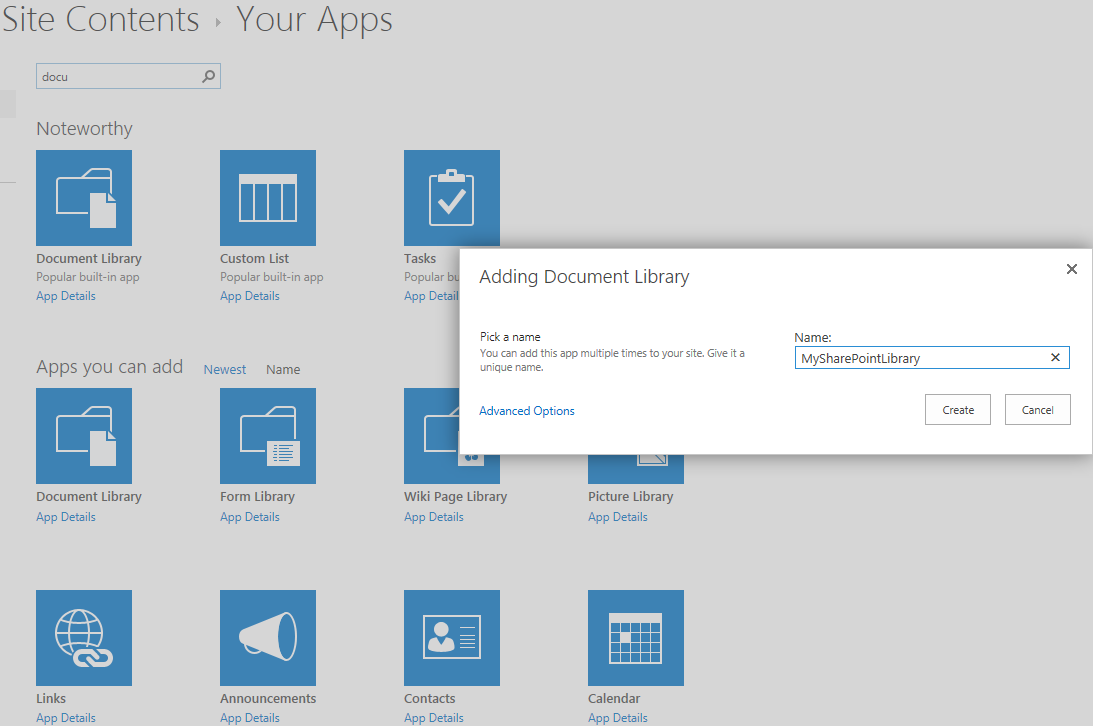
Before installation, let us create a custom document library for our demonstration and testing purpose. We will use this document library to upload and sync the documents. Name is as "MySharePointLibrary" as shown in below figure.


Step - 3

Now upload a document by just drag and drop from your windows explorer.

Step - 4 

Install the OneDrive now, which you have downloaded in step 1
During the installation, the wizard have to provide the document library which you want to download to local machine and sync.


Optionally you can also change the path of the local directory.

Installation and Sync in progress


That is it.

Step - 5 

Testing. Go to your local directory which you have configured during the installation and you can see the document which is actually downloaded to local machine during the sync process. 


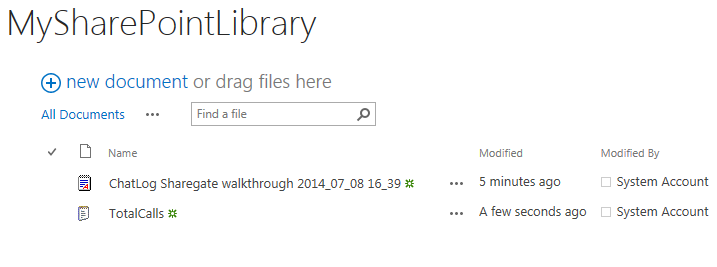
Now add a new document (txt file) to the local directory


Now right click on the OneDrive (in the tray)  and press "Sync now" context menu.


Now the new file will appear in the SharePoint document library as shown below

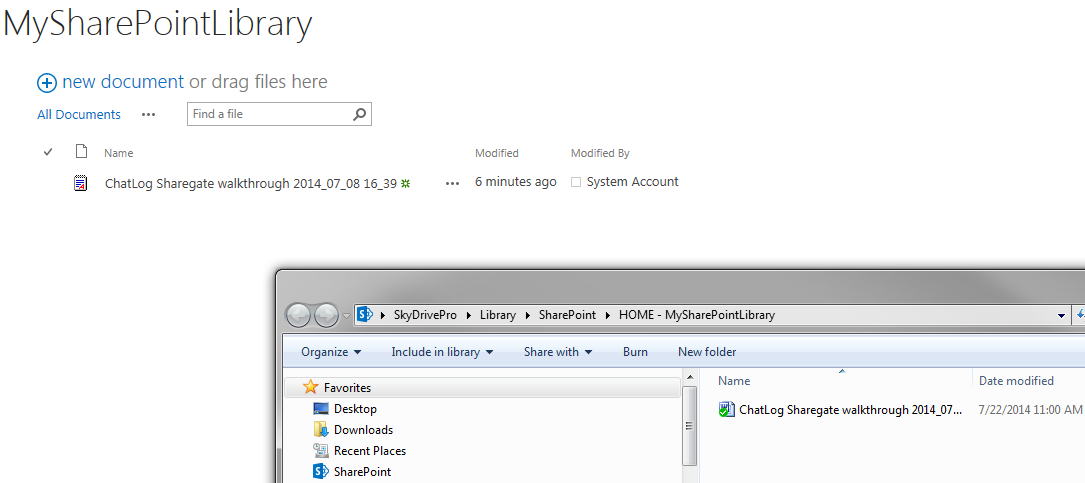
Now I am going to delete as shown below from SharePoint


NB, this time I am going to use the Sync from SharePoint as shown in the below figure (see the top right corner)


This will delete the local copy and the final result is as shown below


Step - 6

Additional Information : OneDrive is free and have some limitations and see the below Information for Plans and features